

To search for a quote, navigate to the top bar where you will find the Search Quote section. There, enter the name of the quotation you wish to search for.
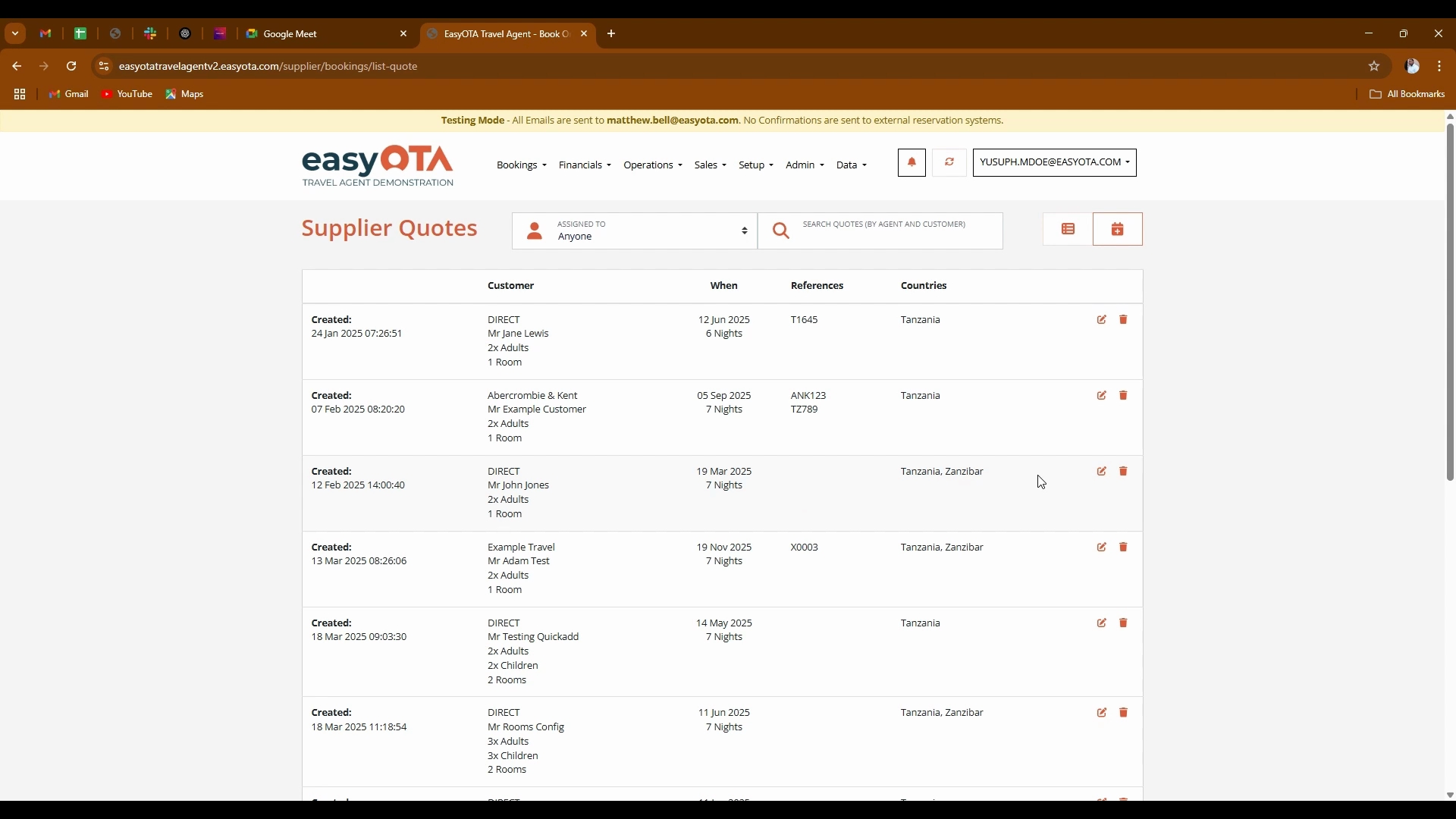
Once you locate the desired quotation from the list displayed, click the edit button on your left.
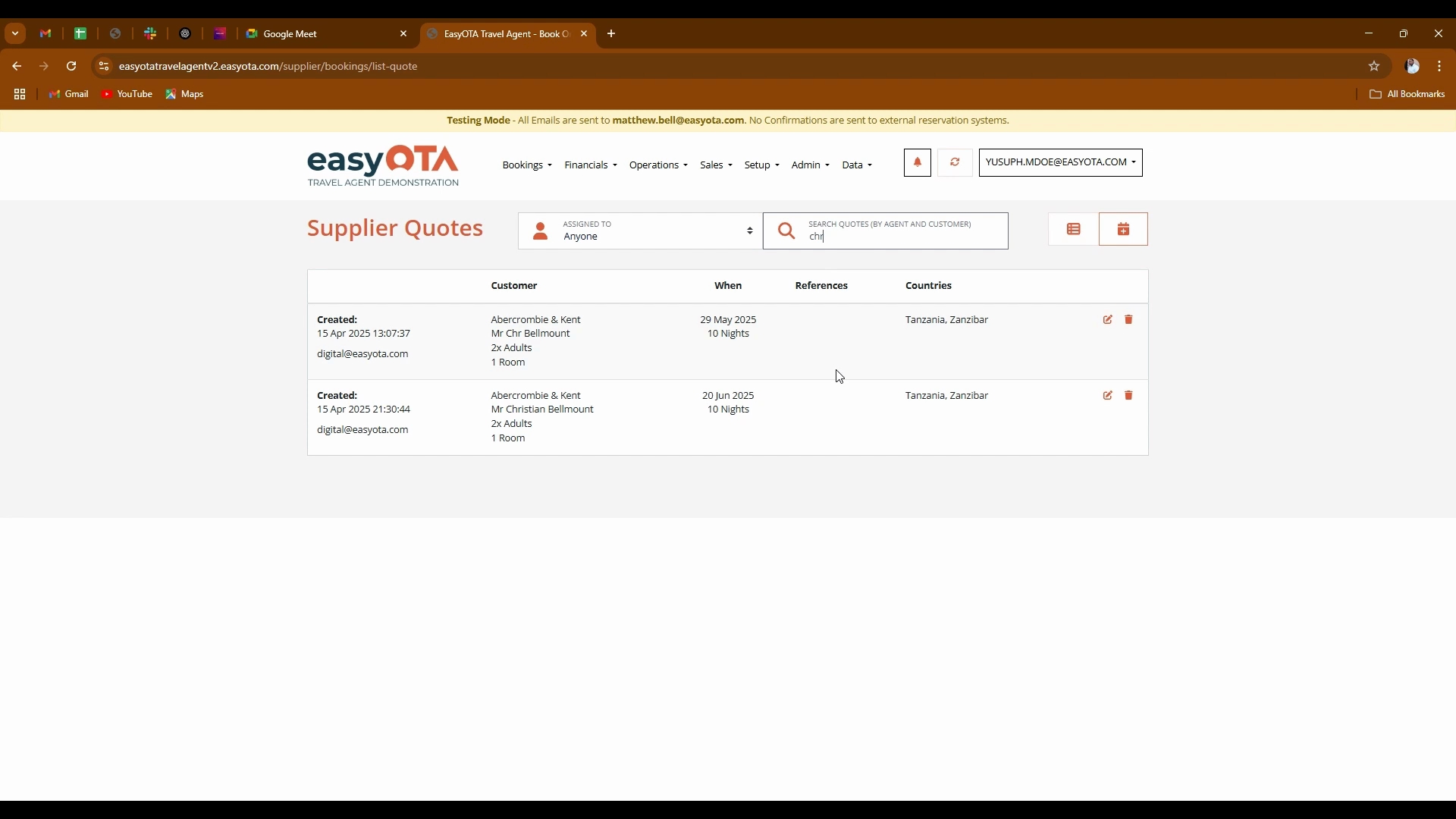
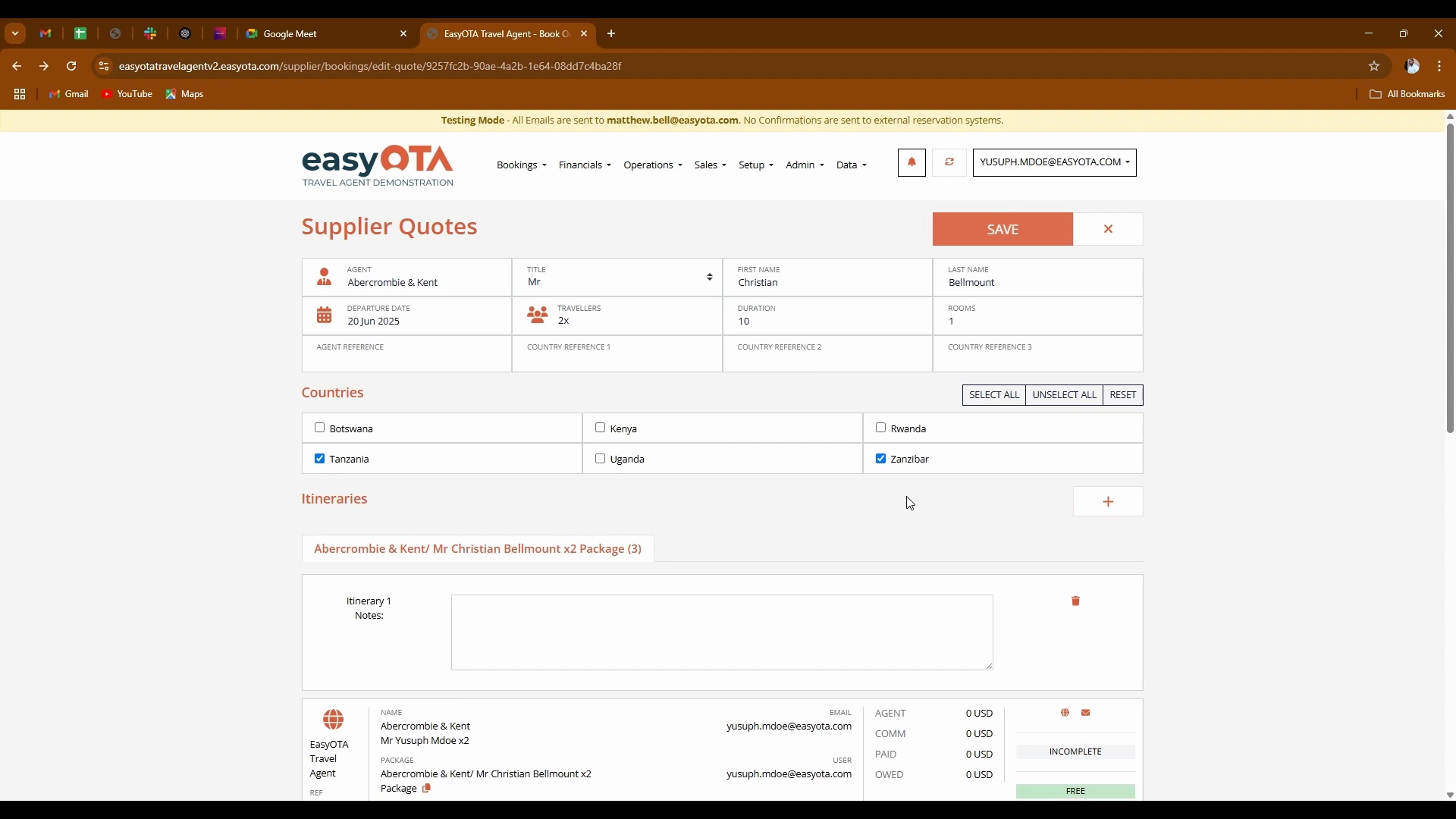
The dashboard will load with the supplier's code you have previously created. Here, you can edit the details, including changing the duration or adding additional information.
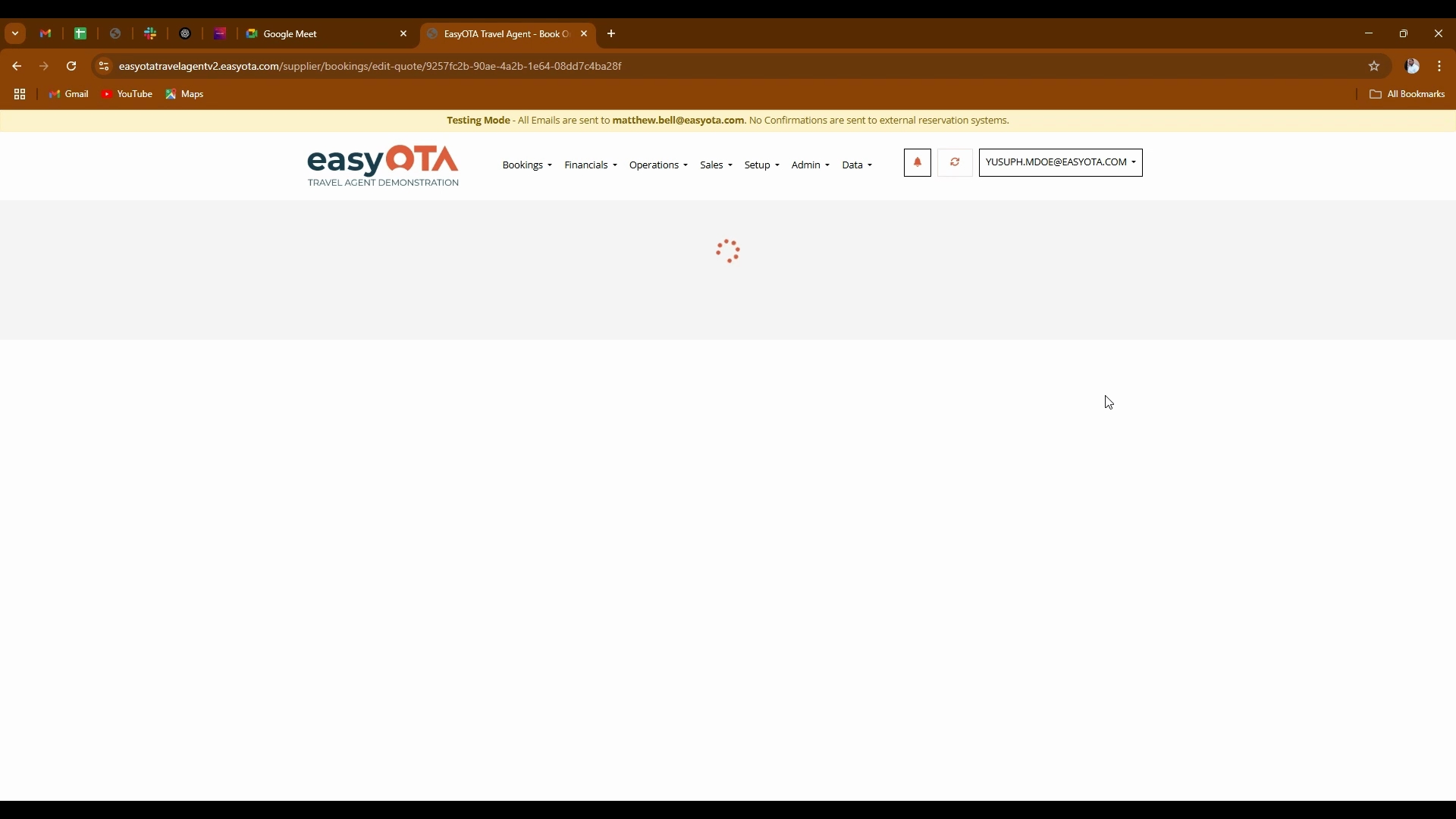
After making the necessary changes, press Save to return. You have now completed your editing.
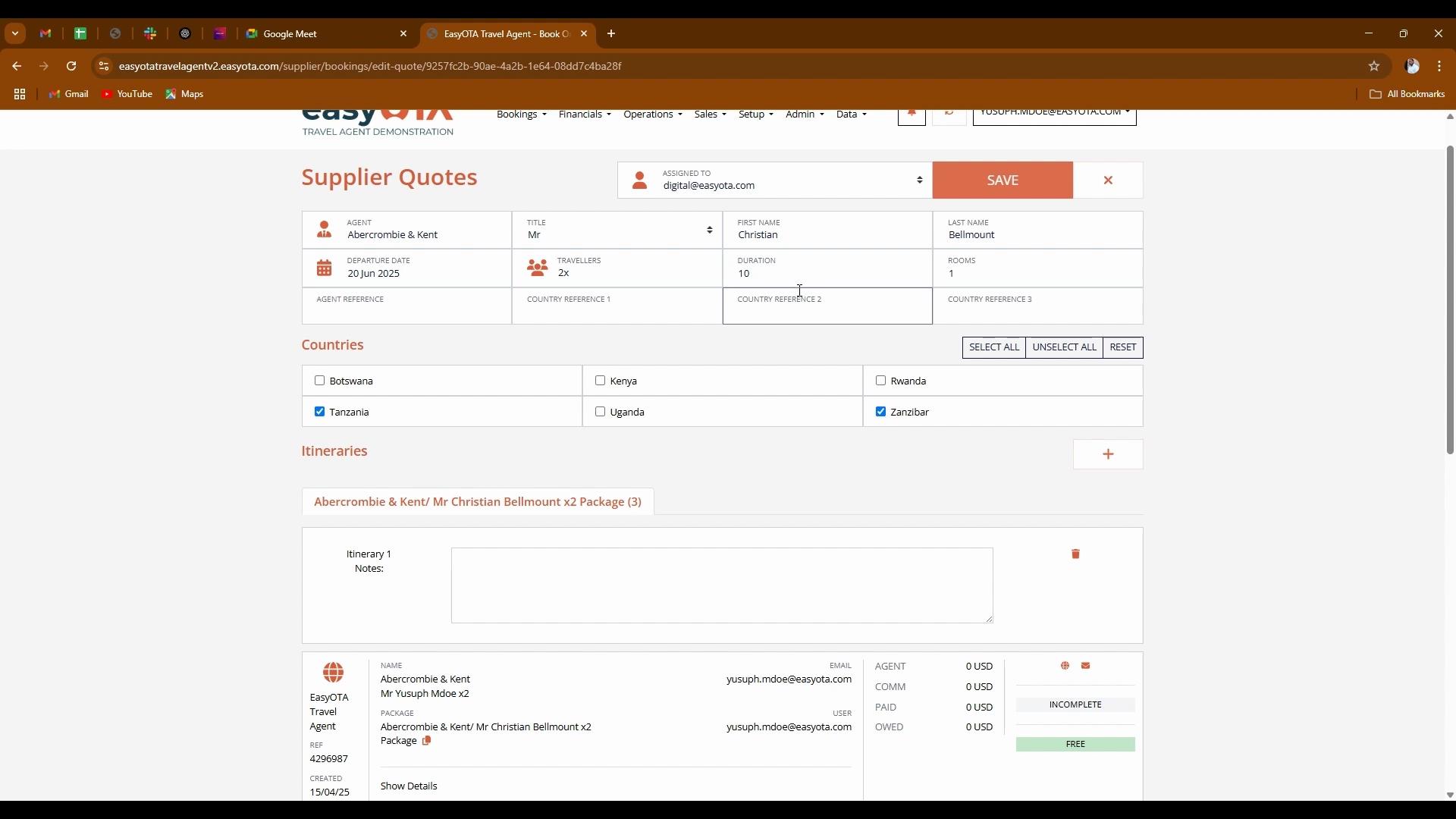
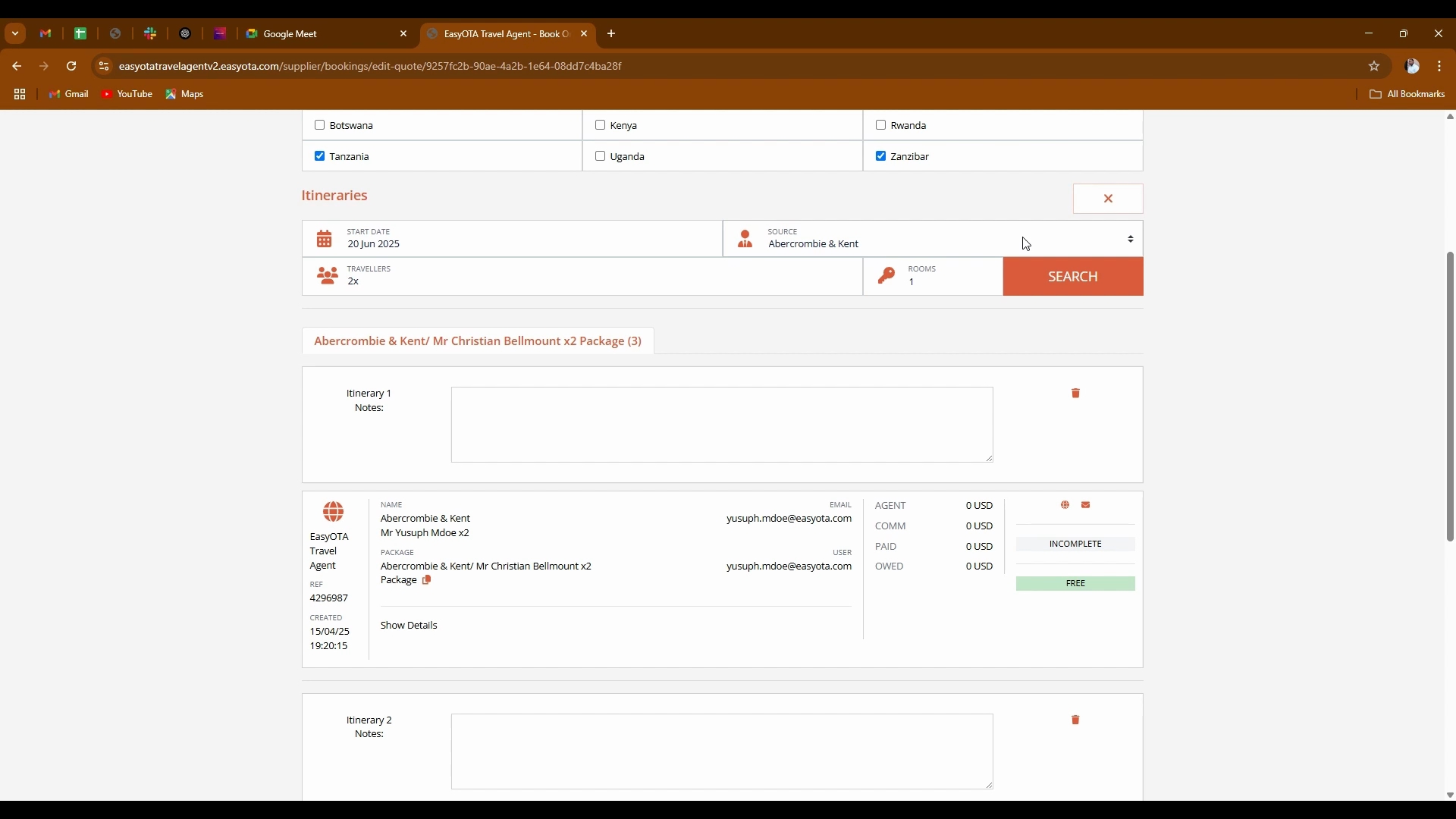
If you wish to add an itinerary, click the Add itinerary button located below the existing itineraries.
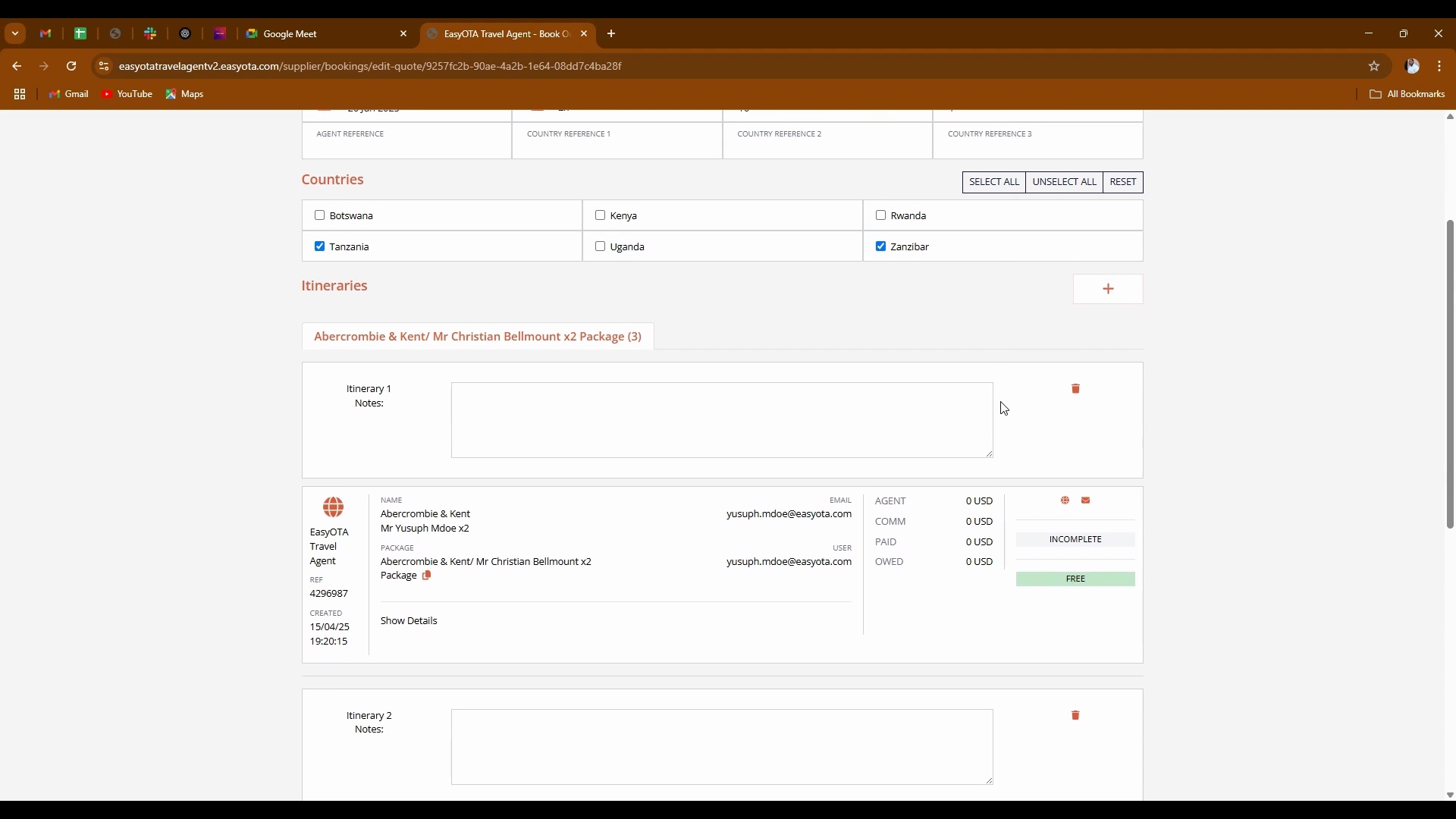
Subsequently, press search and you will begin the process of creating an entirely new itinerary.
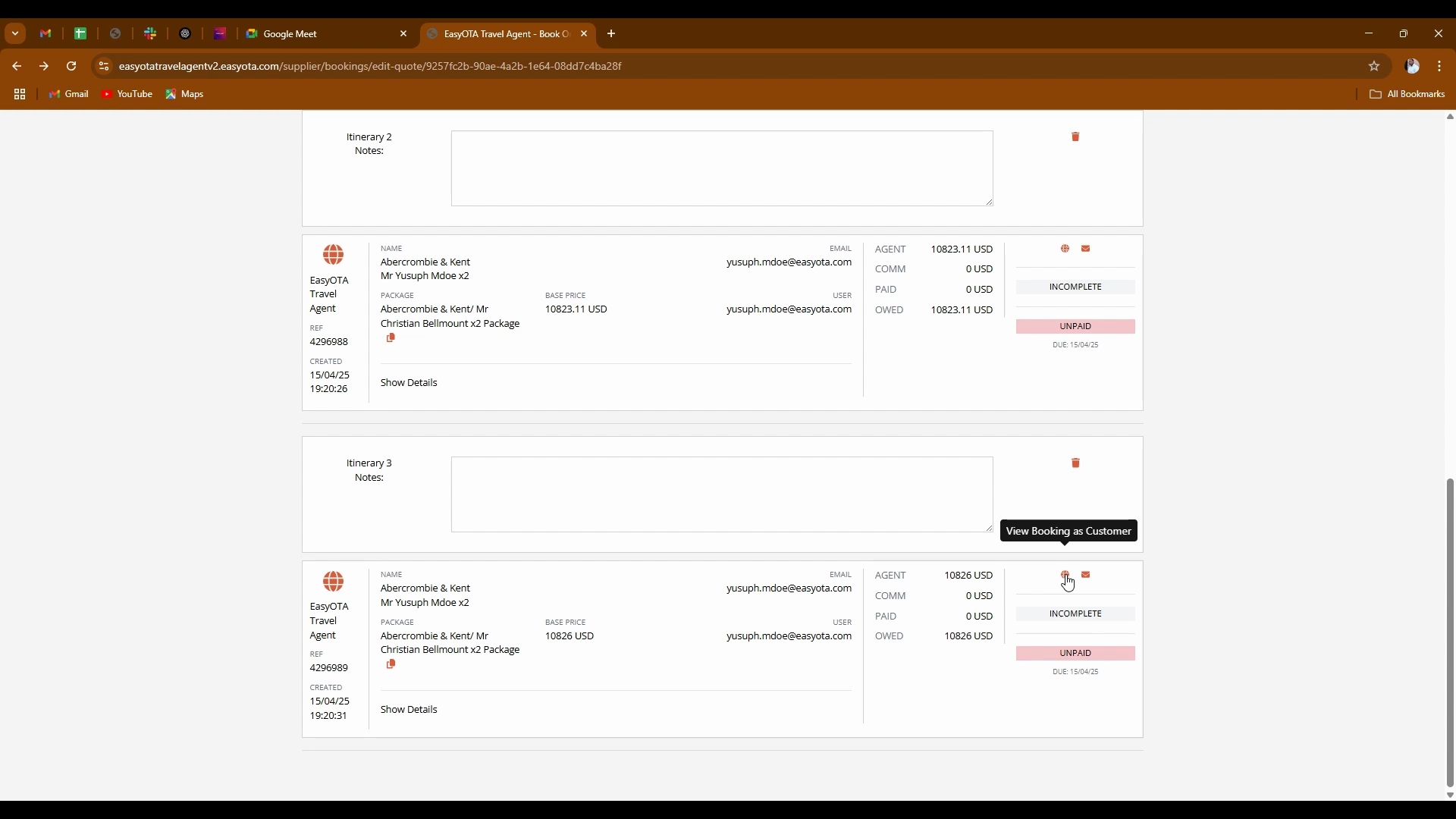
To edit an already created itinerary, navigate to that itinerary and click on view booking as a customer.
This action will take you to the itinerary you have created, providing you with various options on the left for editing.
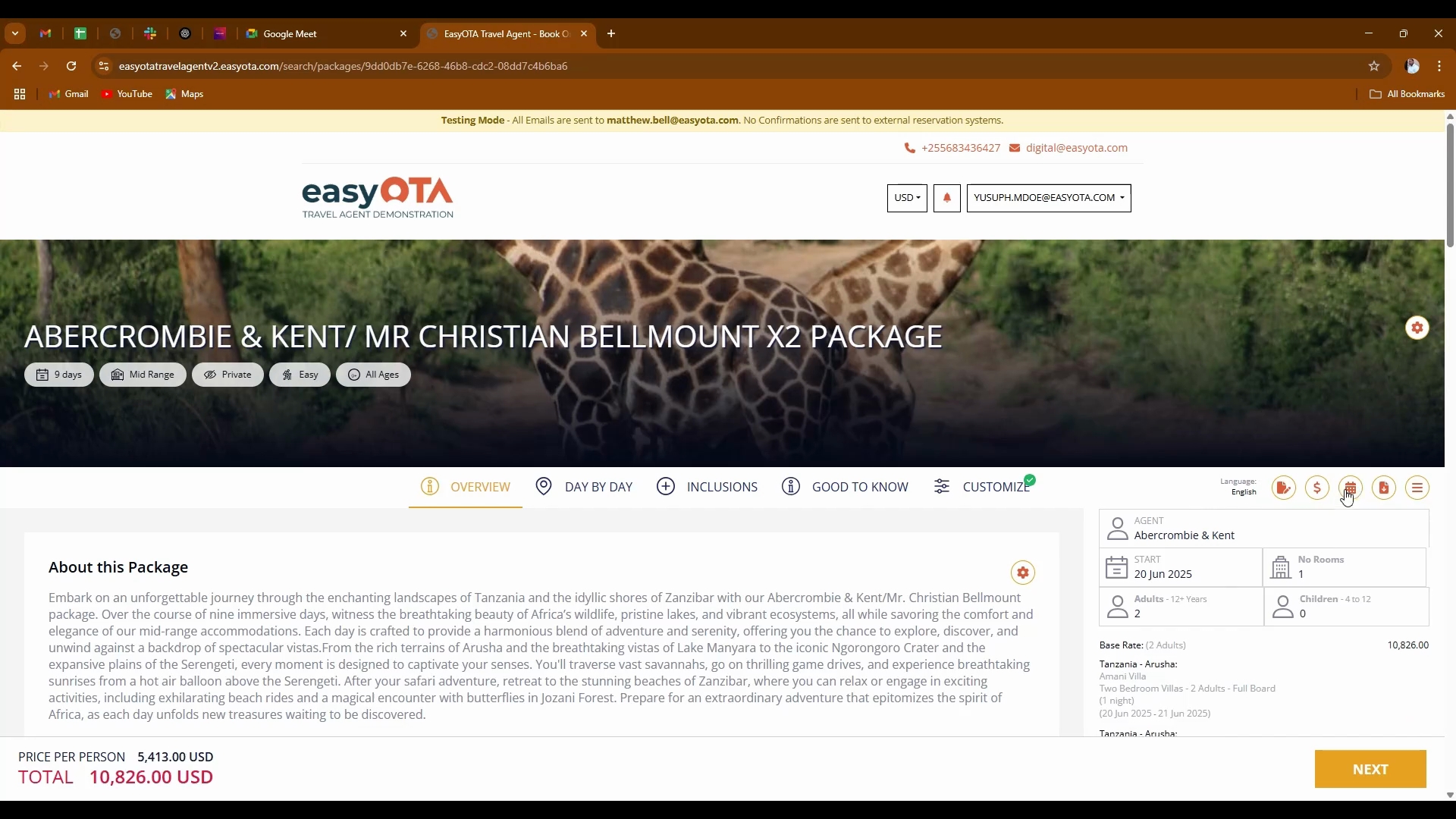
You have the option to edit the description, cost, prices, brochure, and the itinerary itself.
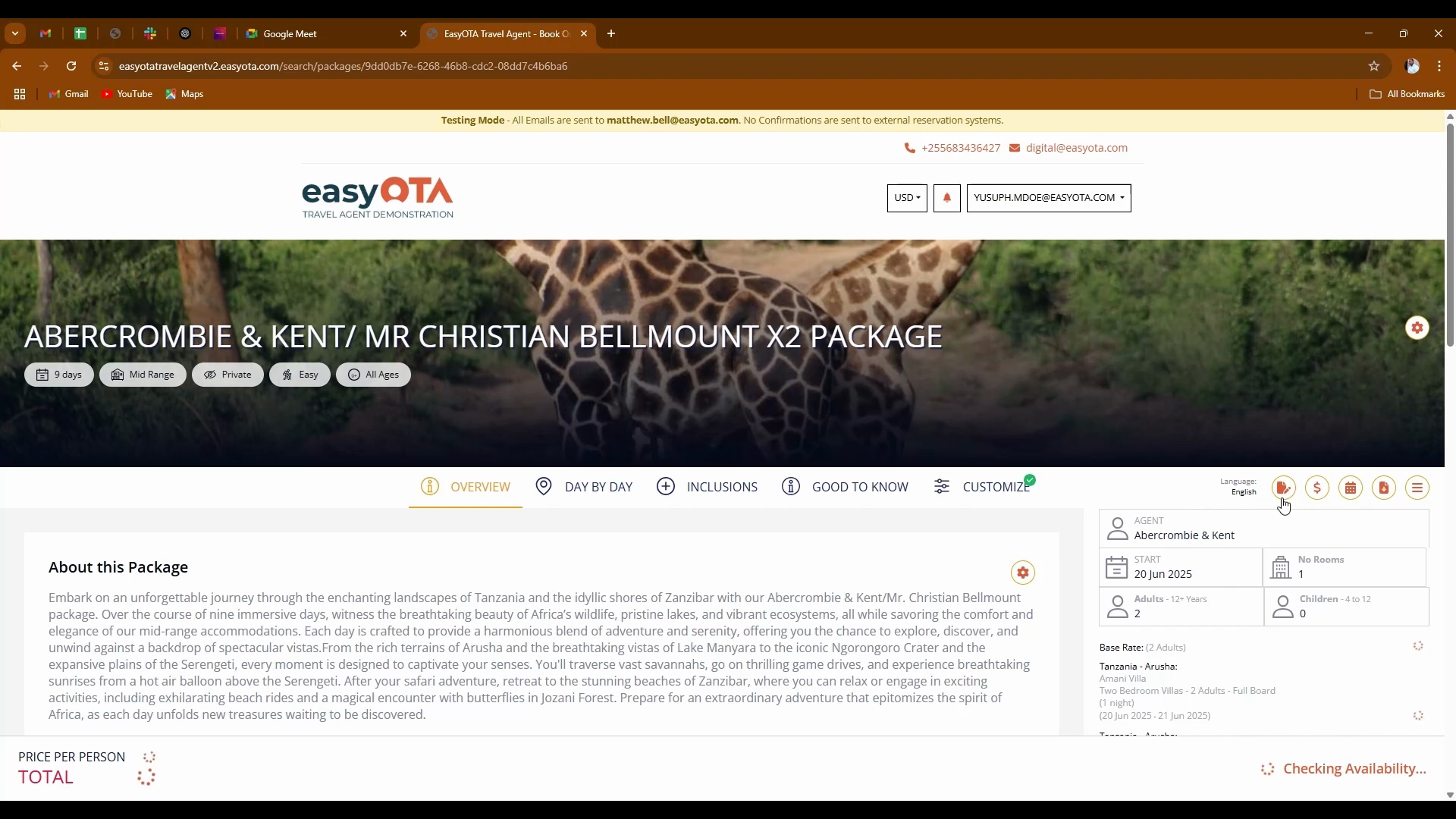
Be aware that upon clicking any of these editing buttons, you will return to the initial screen to make your edits effectively.
By following these outlined steps, you will be able to efficiently search for, add, and edit quotes and itineraries within the software.
