

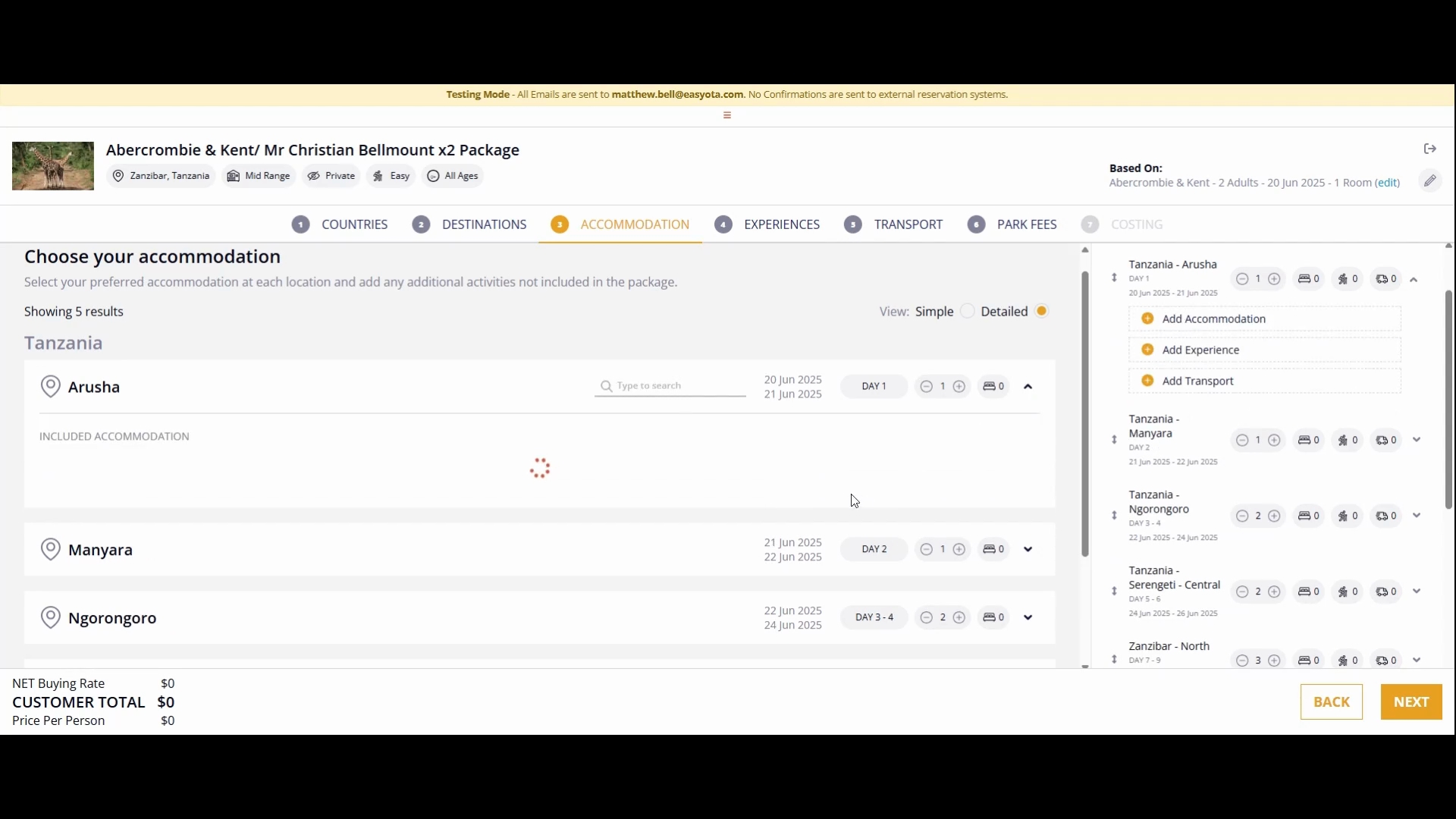
Once you've added all the destinations, they will be displayed aligned on the right side of the interface.
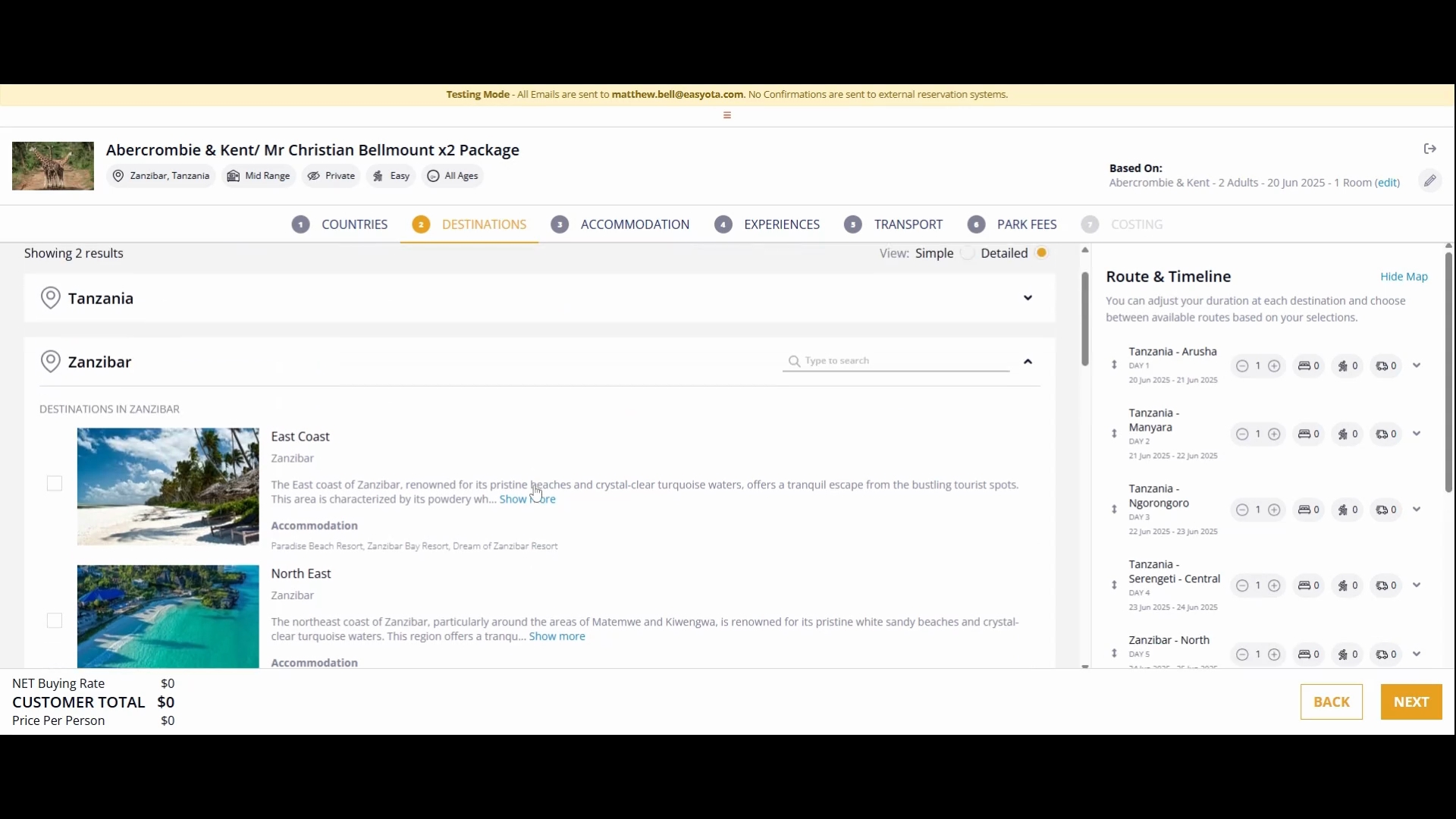
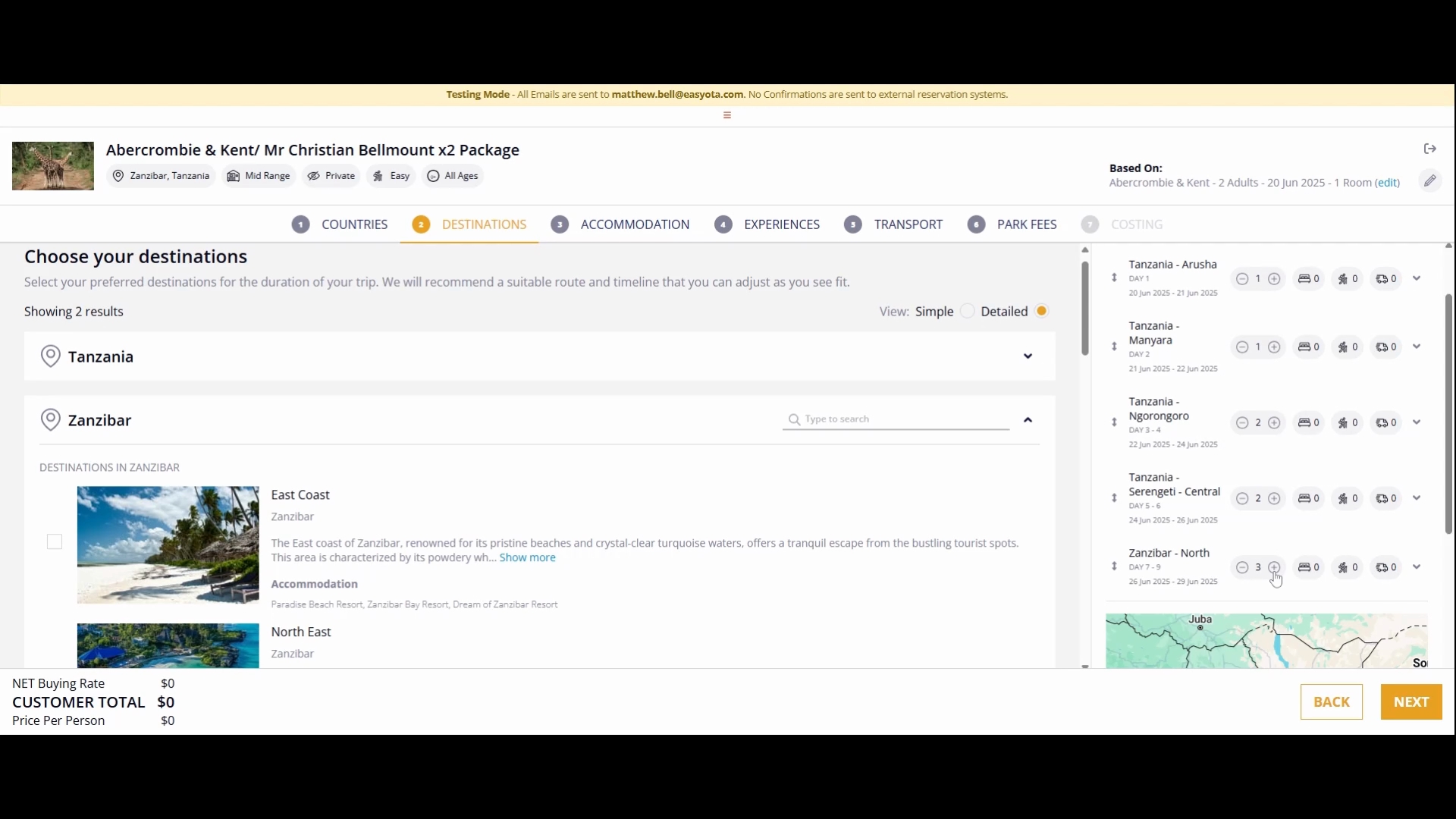
Here, you can add more days per destination. For instance, my clients will be staying two days in Gorongoro, two days in Serengeti, and three days in Zanzibar.
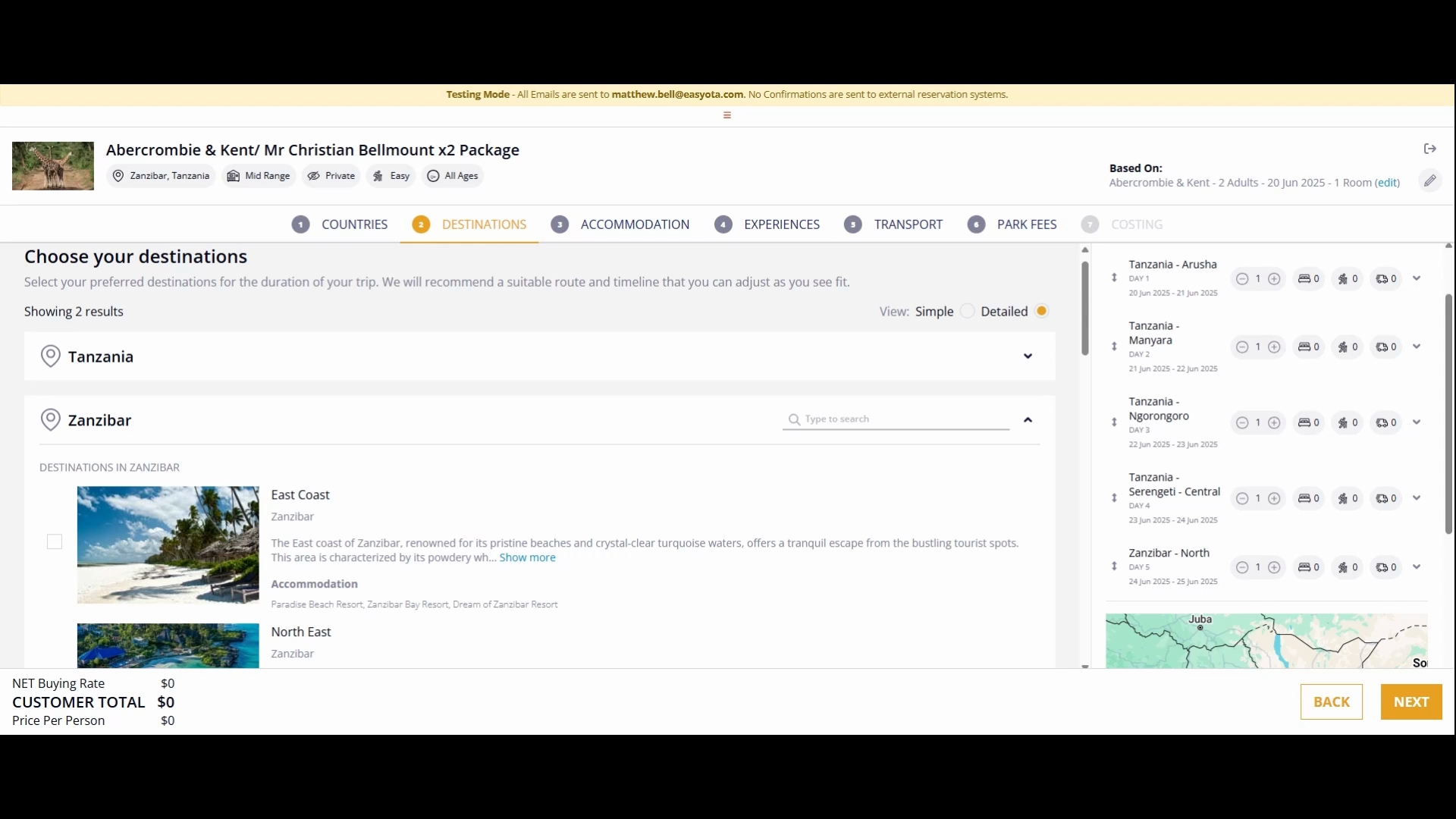
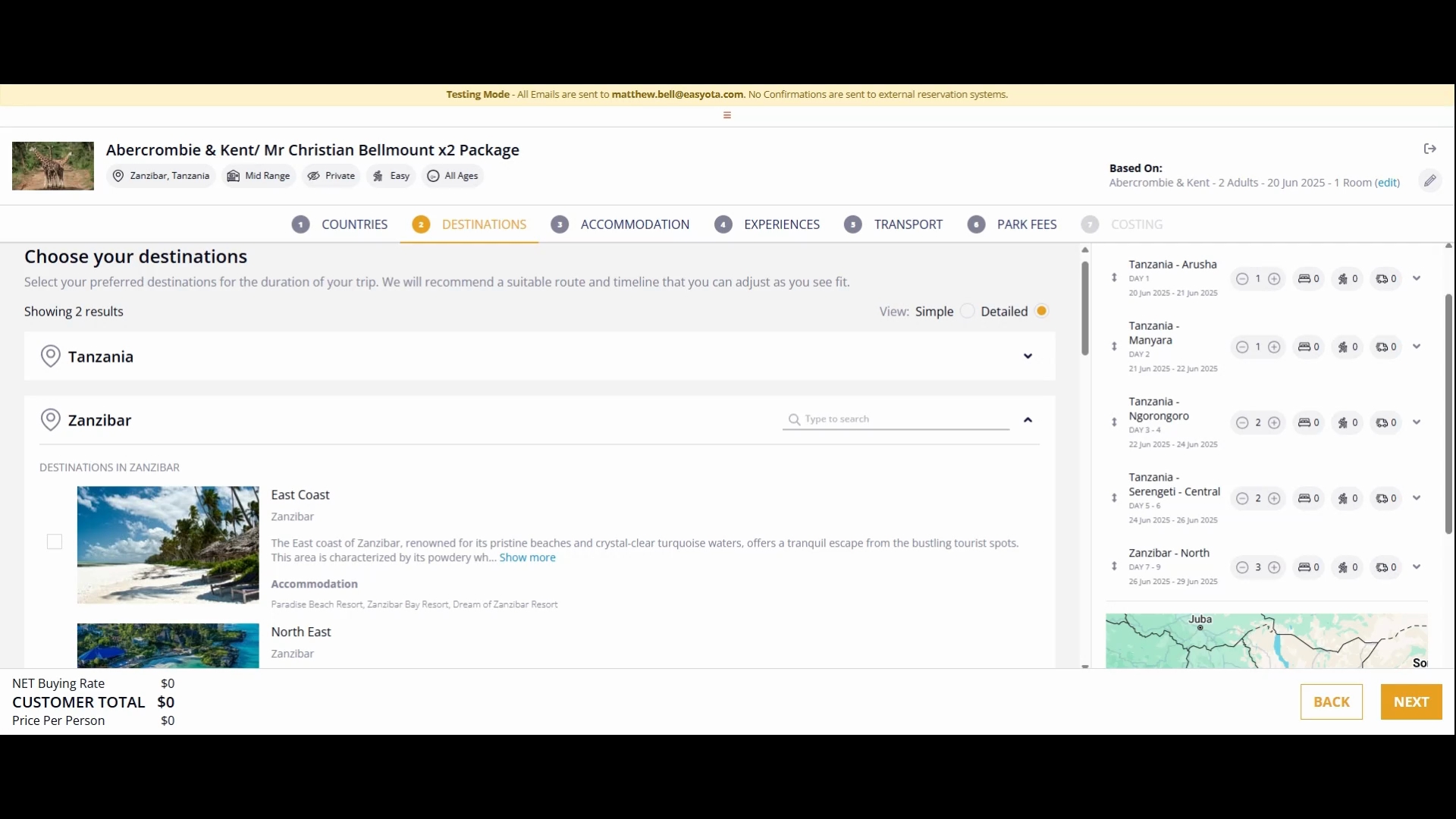
Once you set the number of days, the system will calculate and display the total number of days along with the dates when they will be entering and leaving each destination.
The next step is to click on the accommodations. This process is similar to how you search for destinations.
For accommodations, you can search for hotels at the top or scroll down to see the various locations available. The data will update dynamically as you navigate through the selections.
By following these detailed steps, you will successfully create an itinerary using the Fit wizard, ensuring that your clients have a well-organized travel plan.
